contact us now on whatsapp+44 7852 546967
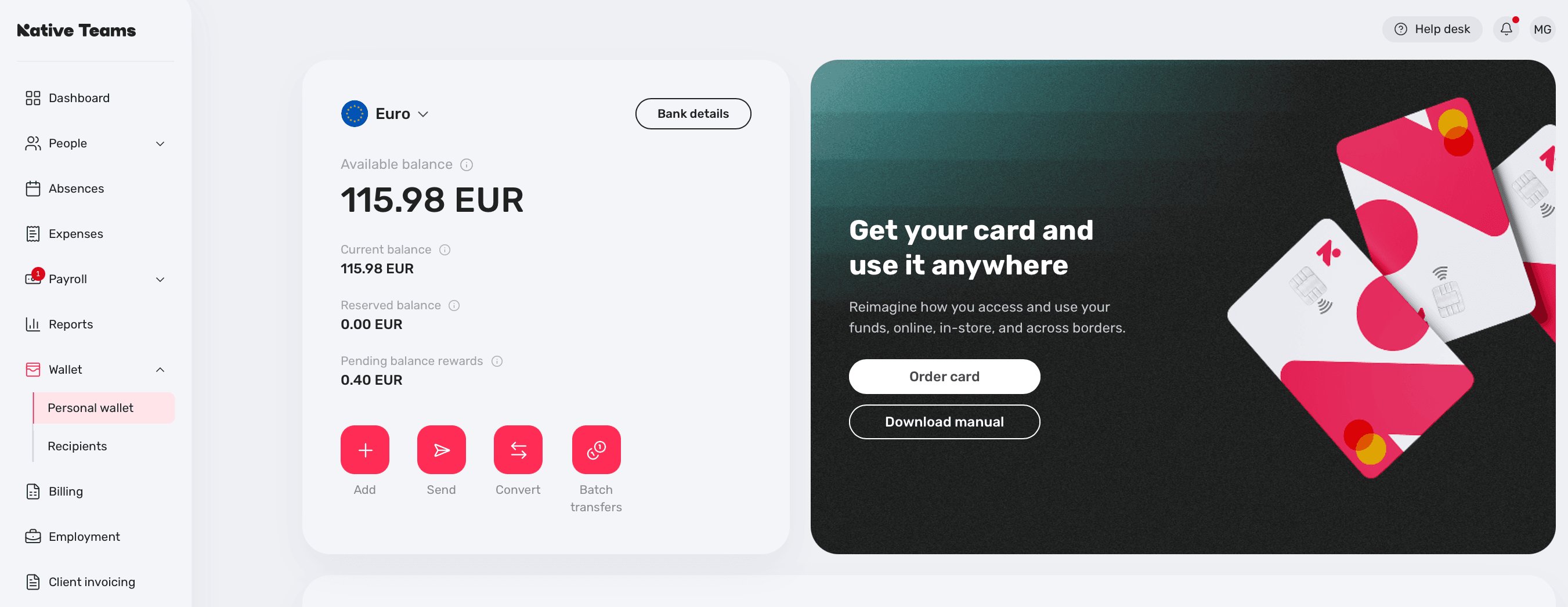
How do I order a Native Teams card?

How do I order a Native Teams card?

Ordering your Native Teams card requires the following steps:

  1. Log in to your account, go to your wallet, and click on the “Order new card” button.

step 1.webp

  1. Once you click on the button, you will be taken to a new screen to confirm. 

step 2.webp

  1. To order a Native Teams card, you are required to verify your identity through the KYC (Know Your Customer) process. To start, click on the “Start your verification” button. 

step 3.webp

  1.  Choose your country and the document you prefer to use for your verification.

step 4.webp
step 4.1.webp

  1. Provide a selfie as part of the verification process.

step 5.webp

  1. Fill in your personal information. (Please note that some of these fields will be automatically pre-filled based on the information provided before).

step 6.webp

  1. Verify your email address by clicking the “Send verification code” button and inputting the code into the app.

step 7.webp

step 7.1 (1).webp

  1. Review the provided information and click on the “Next” button to send your KYC verification for review. 

step 8.webp

step 8.1.webp

  1. Once you complete your verification details, you’ll be taken to a new section where you can order your Native Teams card. Fill in the required information and click the “Continue” button to place the order. 
  2. Once you order your card, you can track the status in your wallet. 

Not the answer you were looking for? Please feel free to contact our support team for more assistance.
 

You might also like these articles